
Annotate
Terminology
Annotation
It defines the assignment of a label in a specific segment. The annotation can be represented as a box within the segment (i.e. strong detection). It is drawn by the user and must frame the sound of interest. Another possible representation is the presence of a sound of interest in the whole segment (i.e. weak detection). In APLOSE, the annotator can also leave a comment and/or express its confidence on any annotation.
Label
A label defining a specific sound. It can define sounds of interest such as the species and their vocalization or a boat passage.
It can be grouped into a Label set
Confidence
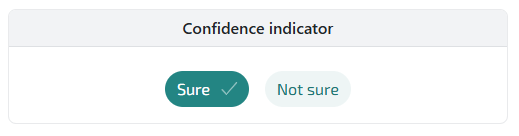
An indicator that represents the level of confidence the annotator has in each annotation. This indicator can be customized, it can be a Boolean value or a level from 0 to 3 for instance.
It can be grouped into a Confidence set
Acoustic features
If the campaign allow it, you can specify your annotation features.
Add annotations
We differentiate several types of annotations:
- weak annotation: a label is present on the file
- strong annotation: a label is present on:
- point: exact position
- box: area
For each strong annotation, there is a weak annotation associated to the same label.
In the cas you loaded an already submitted file, your previous submission should appear and can be modified.
Add a weak annotation
You can add a weak annotation my checking the desired labels in the "Labels" bloc.

Shortcut ⌨️
The keys 1 to 9 on your keyboard are shortcuts to the corresponding labels in the list.
You can see all your annotations on the "Annotations" bloc. In this example we have the two selected labels.

Note
If you uncheck a weak annotation, it will remove all annotations, weak or strong, made using this label.
Add a box annotation
In the "Labels" bloc, you can select the label you want to use to create your annotation.
To create a box annotation, click on the spectrogram and drag over the area containing the sound of interest. On click release, the annotation is created and selected.
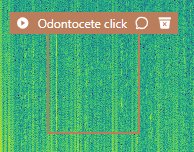 This is an example
On the header of the annotation, you can see:
- A play button to listen to your annotation
- The associated label
- A comment indicator (see the comment section bellow)
- A button to remove your annotation
The strong annotations are listed in the "Annotations" bloc. Each strong annotation is bellow the corresponding weak annotation.

In the list, you can see the time and frequency coordinates of your annotation. The information can also be found in the "Selected annotation" bloc right bellow the spectrogram:
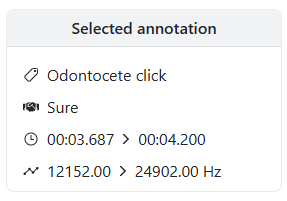
To change the label of your annotation, you must select the annotation and then click on the right label in the "Labels list" bloc.
Tip 💡
You can resize a box by moving each side, or move it while selecting its header.
Acoustic features
When you create a box with a label allowing acoustic features, a bloc appear next to your box. If you set the quality as "good" you will be able to specify the signal acoustic features.
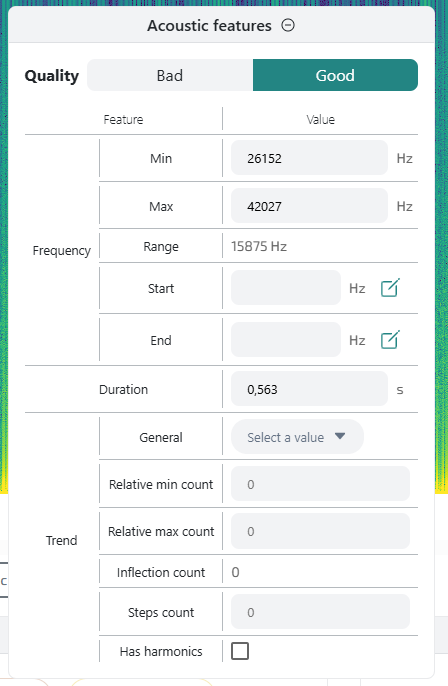
| Field | Unit | Description |
|---|---|---|
| Frequency min/max | Hz | Directly linked to the box frequency bounds |
| Frequency start/end | Hz | Frequency of the start/end of the signal. Can be picked directly on the spectrogram thanks to the pencil button |
| Relative min/max count | Number of relative min/max frequency | |
| Inflection points | [Auto] Number of inflection points: sum of relative min and max frequency | |
| Steps count | Flat frequency part counts | |
| Has harmonics | Does the signal has harmonics | |
| Trend | General trend of the signal (Flat, Ascending, Descending or Modulated) | |
| Duration | s | Duration of the box, directly linked to the box time bounds |
| Sidebands | Does the signal has sidebands | |
| Subharmonics | Does the signal has subharmonics | |
| Frequency jumps | Does the signal has frequency jumps. If it does, the number of jumps | |
| Deterministic chaos | Does the signal has detecterministic chaos |
All the features are optional.
Add a point annotation
If the campaign accepts "point" annotations.
To add a point, select the desired label and then click on the spectrogram at the point of interest.
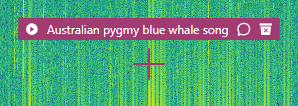 This is an example
You'll then have the same information as for a box annotation.
Tip 💡
You can move a point it while selecting its header.
Check annotations
In "verification" phase mode, the "Annotations" bloc contains all the detector or annotator output you need to confirm or infirm.

Here is an example with a weak label.
The buttons on the right let you choose either you find the annotation correct or not. You can change the annotation label and move or resize the incorrect annotation.
Add comments
You can add comments on each annotation or on the task.
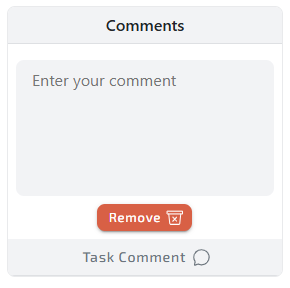
To add a comment to an annotation, first select it (in the "Annotations" bloc or on the spectrogram). To add a comment to the task clik on the "Task Comment" button at the bottom of the "Comments" bloc.

The comment icon changed based one the existence of a comment: the buble is filled if a comment exists for the annotation or task. This information is displayed for each annotation in the "Annotations" bloc or in its header on the spectrogram, and for the task on the "Task Comment" button at the bottom of the "Comments" bloc.
Specify confidence
If your campaign allows you to, you can specify the confidence level you have on your annotation by selecting the appropriate one in the "Confidence indicator" bloc.
Submit and navigate
The navigation buttons are located below the spectrogram. 
Shortcut ⌨️
The "enter" key on your keyboard is a shortcut for submitting your task and moving on to the next task. Use the left and right arrows on your keyboard to navigate between tasks.
To save your changes, you must click on the "Submit & load next recording" button once you're done. This will automatically load the next file.
The arrow buttons allows you to navigate between the files
Be careful
The navigation does not save the changes you've made.