
Annotation page
Terminology
Annotation Task
A task is a file to annotate for a specific annotator. It belongs to a campaign. The status of a task can be one of the following:
- Unassigned: The segment file is not assigned to the annotator
- Created: The segment is assigned to the annotator, but the annotator has not accessed it
- Finished: The segment is assigned to the annotator and the annotator has submitted its annotations
Analysis
Each dataset can have multiple analysis. The analysis contains pre-processed spectrograms for a defined configuration (FFT, colormap...). These configurations can be viewed on APLOSE for annotation.
To annotate a file you must access a campaign and then click on a file access link or on the resume button:

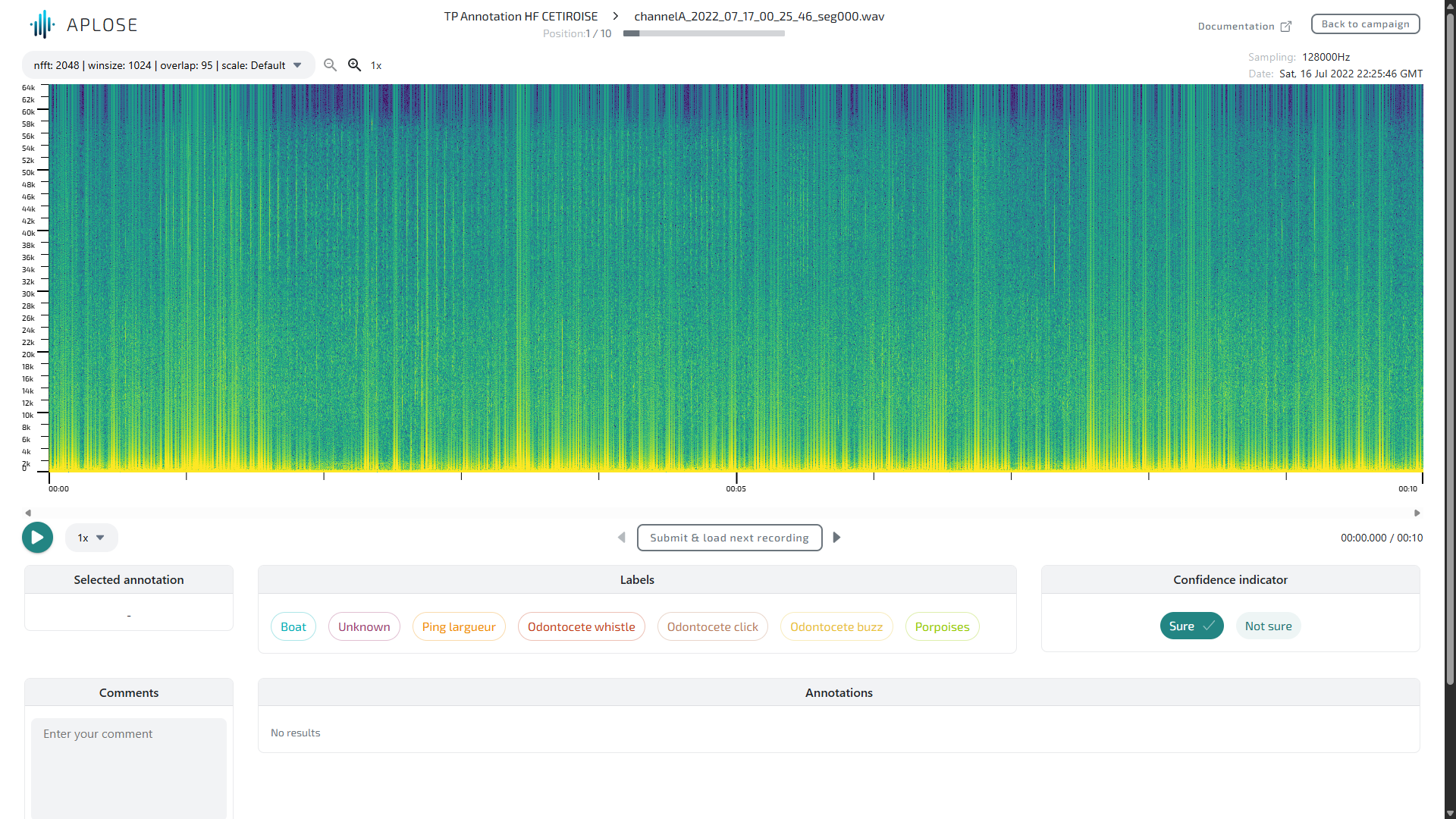
This page allows to annotate audio recordings thanks to their spectrogram.
Spectrogram visualisation
The spectrogram is labelled with time and frequency axes. A selector above the spectrogram let you should between available FFT parameters for your spectrogram. You can also have different frequency scales.

Available frequency scales
| Scale | Description |
|---|---|
| linear | Linear scale from 0 to sample rate / 2 |
| audible | Linear scale from 0 to 22kHz |
| porp_delph | Multi-linear scale:
|
| dual_lf_hf | Multi-linear scale:
|
Zoom in spectrogram
A zoom feature is available on time only. You can zoom with the zoom buttons next to the spectrogram configuration selector or with the mouse wheel on the spectrogram.

The zoom is discrete: each zoom level offers pre-computed spectrogram, meaning zoom levels are decided by the creator of the dataset.
Listen to the audio file
You can listen to the recording thanks to the play/pause button bellow the spectrogram (on the left). You can set the time position from which you want to start listen by clicking on the spectrogram.

Next to the play/pause button, you can choose the speed of the playback (from 0.25x to 4x). This allows you to hear high frequencies by slowing down the playback, or low frequencies by speeding up the playback.
Shortcut ⌨️
The "space" key on your keyboard is a shortcut for playing and pausing the audio file.
Tip 💡
Use a headset for a better listening experience!
WARNING
Files with a really high sampling rate may not be compatible with your browser. The compatibility limit depends on the browser. Firefox tends to have the wider compatibility.